The MetaMapper Blog
Make a Vaporwave Image from an Editable Preset
Make a vaporwave graphic with a real editable preset. Replace its title and message, keep the retro window artwork, and download your finished image.
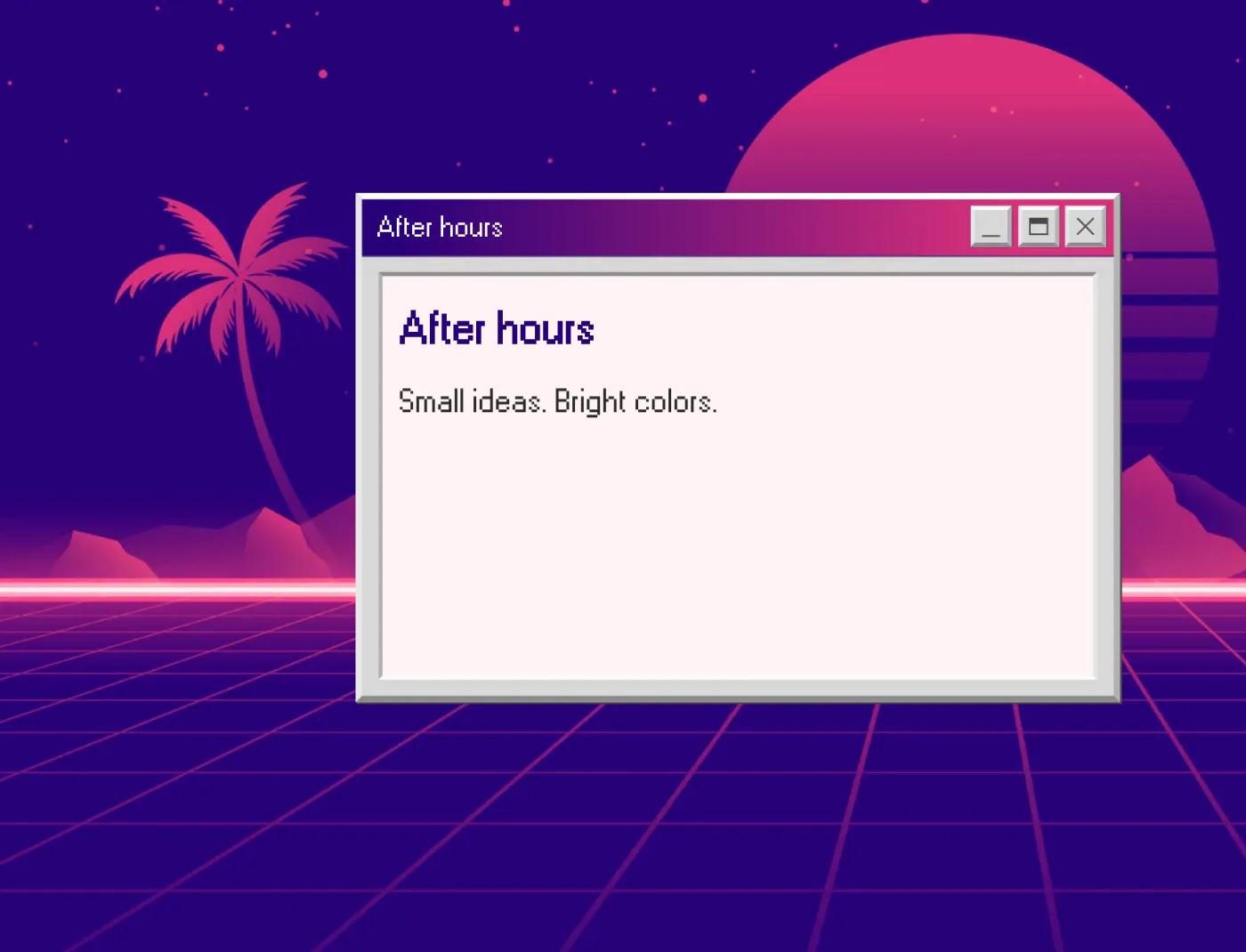
Start with a vaporwave image preset instead of a blank canvas. MetaMapper combines retro window artwork, colorful imagery, and editable text so you can turn a short message into a finished graphic.
Open this vaporwave preset, or inspect its preview first. This tutorial uses vaporwave, preset 92, with a 1400 × 1070 canvas. It opens without a website URL.
The example: After hours
The example uses the preset's existing background and window artwork. The title and message were edited in the browser and the result downloaded as a PNG.
1. Load the matching design
Open the preset link above and wait for the background and window to appear. Use this specific preset to follow the example; the general editor can open a different layout.
2. Change the title and message
Double-click each title text area and replace the sample text with After hours. This layout has a title in the window bar and a larger title inside the window. Then replace the description with Small ideas. Bright colors.
Click outside the text to finish editing. Keep the wording short enough to fit within the window. You can adjust the selected text object's font settings or position; those controls apply to the selected object rather than every part of the artwork.
3. Add your own image if the composition needs it
For the example above, keep the original artwork. To make a variation, open Add and choose Add local image. Position the new image and check that it does not cover your message. A decorative window can be a single image, so its illustrated controls are not separate application tools.
4. Download and check the image
Open Share and select Download for a PNG. In Download options, you can select JPEG or WebP and an output size. At the original size, this preset produces a 1400 × 1070 image.
Open the downloaded file and check the text at the size you intend to display it. Keep the exported file before closing the editor; a shareable URL does not preserve every canvas change.
Image export and experimental video recording
The steps above produce a still image. Some other presets use animated backgrounds, and video recording is a separate experimental, browser-dependent workflow. A vaporwave preset does not by itself provide music selection or guarantee an animated download.
Where to go next
Use the same vaporwave preset for another message. For a quieter retro composition, follow the Windows 95 dialog tutorial. To choose by layout, see the Windows 95 preset comparison.