The MetaMapper Blog
Windows 95-Style Presets: Choose a Dialog, Window, or Desktop
Compare three actual Windows 95-style image presets, their dimensions, and editable text areas. Pick a warning dialog, MS-DOS layout, or media-player desktop.
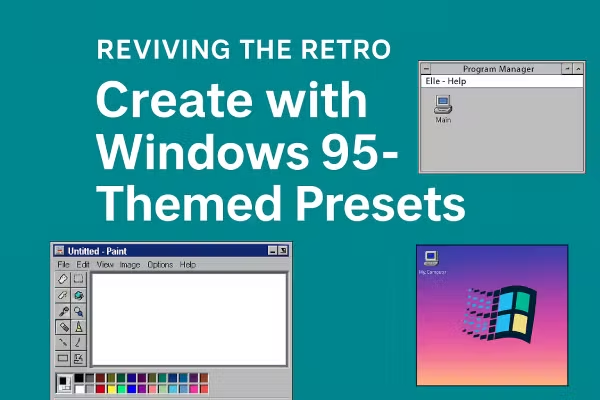
Choose a layout around the message you want to share. These MetaMapper presets create retro-styled images, with different compositions and editable objects. Start with the preview that fits your idea, then open that exact preset.
Compare the layouts
| Preset | Original image size | A useful starting point for |
|---|---|---|
| Warning dialog | 1024 × 768 | A short announcement or playful error message |
| MS-DOS prompt | 1200 × 900 | A text-led graphic or retro quotation |
| Media-player desktop | 1440 × 1080 | A desktop composition with media-player artwork |
These are canvas dimensions at the original download size. The editor's Download options offers other output sizes.
Warning dialog: one clear message
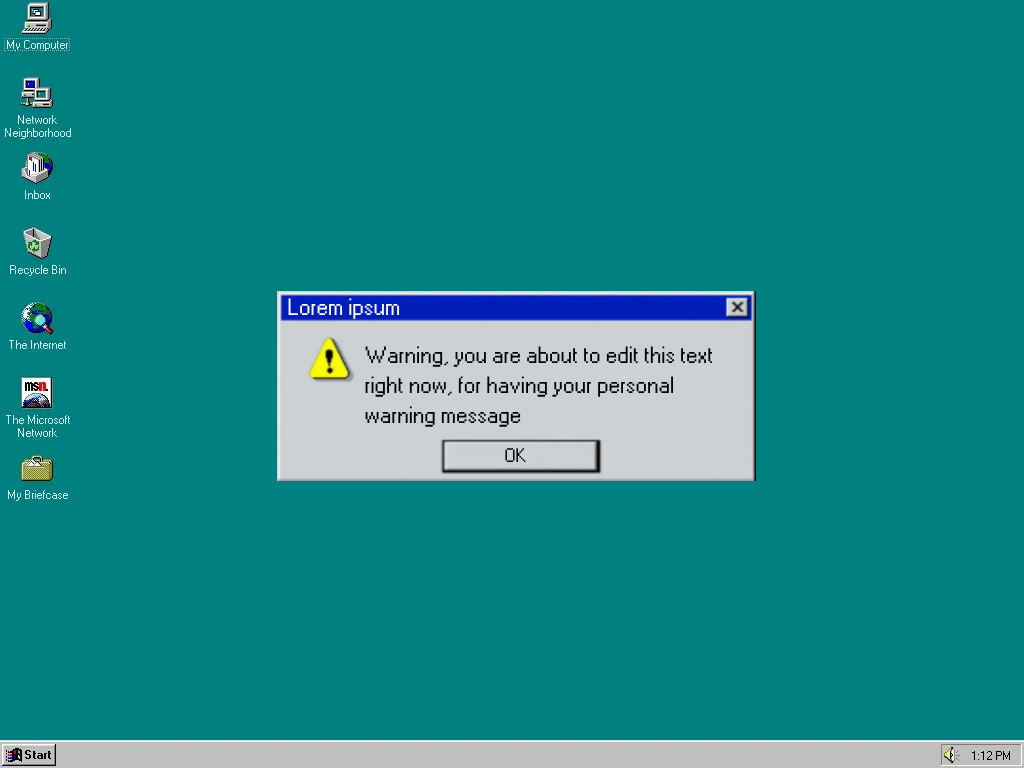
Choose this layout when a brief message should be the focal point. Its three text objects let you replace the title, warning message, and button label. The dialog artwork and desktop supply the surrounding visual style.
Edit the warning dialog. For a worked example, follow the dialog image tutorial.
MS-DOS prompt: give text more room
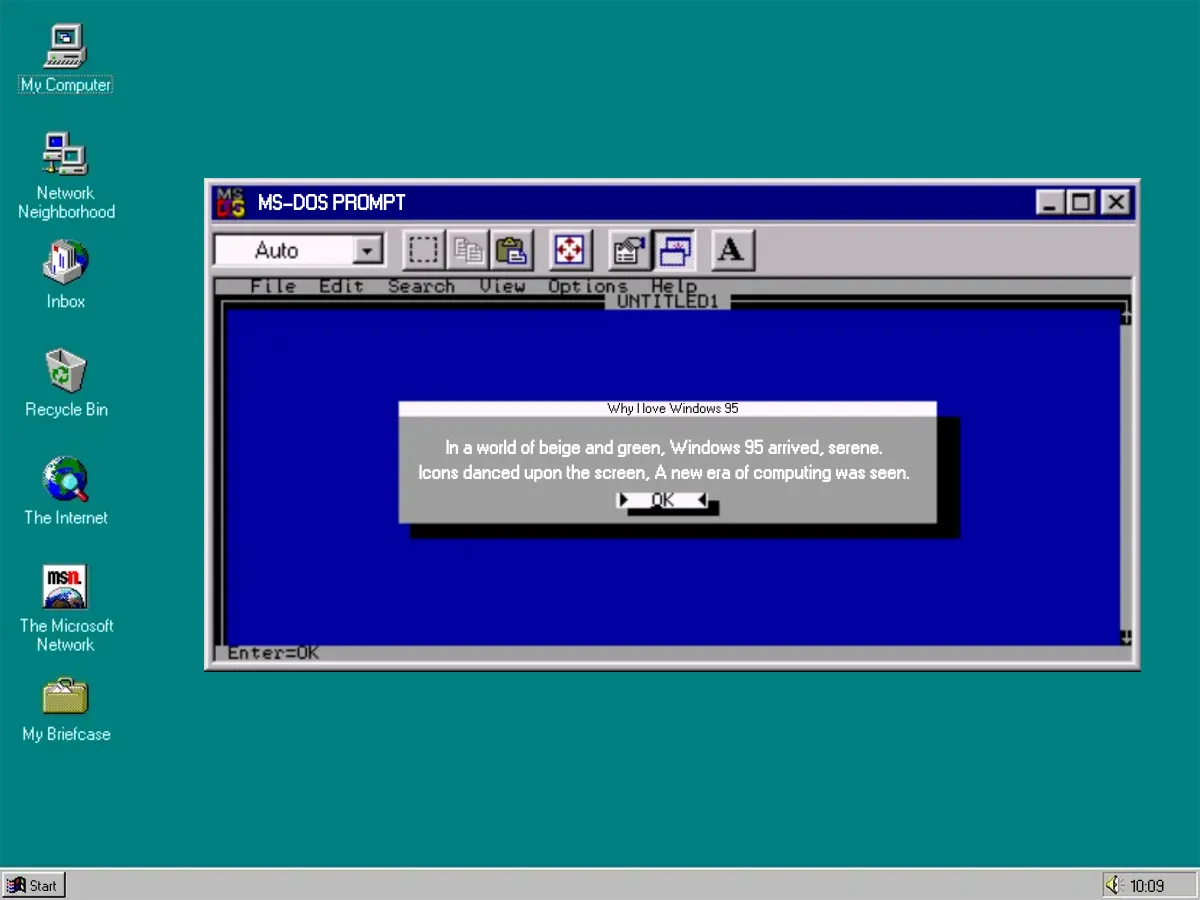
This preset includes editable window-title and message text alongside desktop labels. Use it for a quotation or a short piece of writing. Keep line breaks readable inside the window and check the finished image at its intended display size.
Edit the MS-DOS prompt layout. The prompt is a visual layout; typing into its text objects does not execute commands.
Media-player desktop: build around the artwork
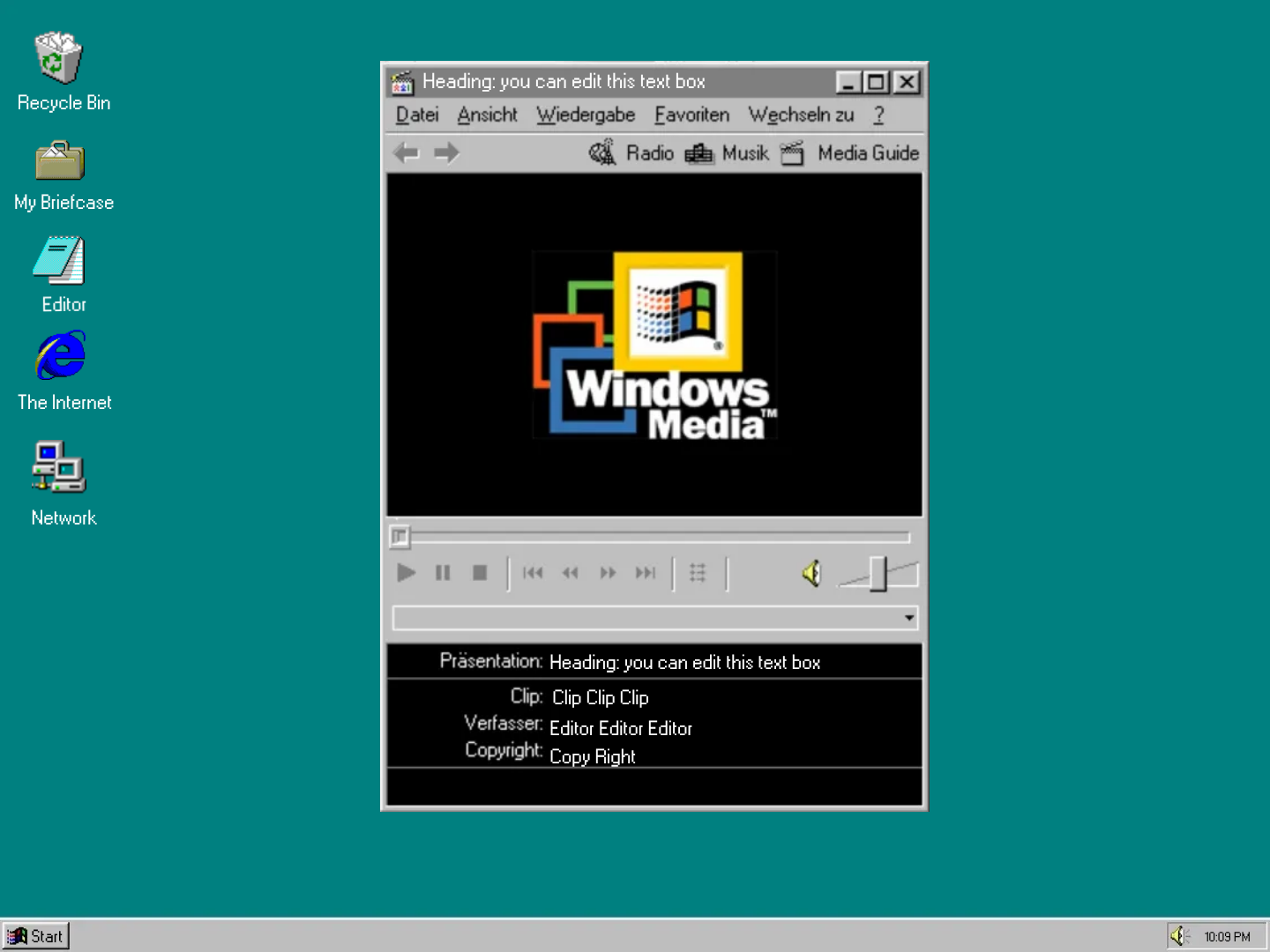
Choose this composition when the desktop and media-player imagery are part of the idea. The preset includes title text and desktop-label text objects. Select an object to see its available controls; artwork can combine several visual details into one image.
Edit the media-player desktop. The player is pictured in the design; this preset does not supply music playback or system sounds.
After choosing a preset
Double-click a text object to change its wording. Use the selected object's controls to adjust supported text settings, and drag an object to reposition it. To include your own picture, open Add and choose Add local image; review its position before exporting.
Open Share, choose Download options if you need a different size or format, and select Download. Image formats are PNG, JPEG, and WebP. Save and inspect the downloaded result before closing the editor.
Which preset should I start with?
For a first design, use the warning dialog and its step-by-step tutorial. Choose the MS-DOS layout for more text, or the media-player desktop when the surrounding artwork matters. For a different color palette, try the vaporwave tutorial.
These are images inspired by older interfaces. They do not install a Windows theme, open native application tools, or generate font files. Video recording is a separate experimental feature; the workflow here is image export.