
The MetaMapper Blog
Make a Windows XP Error Message Image with Your Own Text
Customize a Windows XP-style error window with your own title and message. Follow a worked example, open the matching preset, and download a PNG.
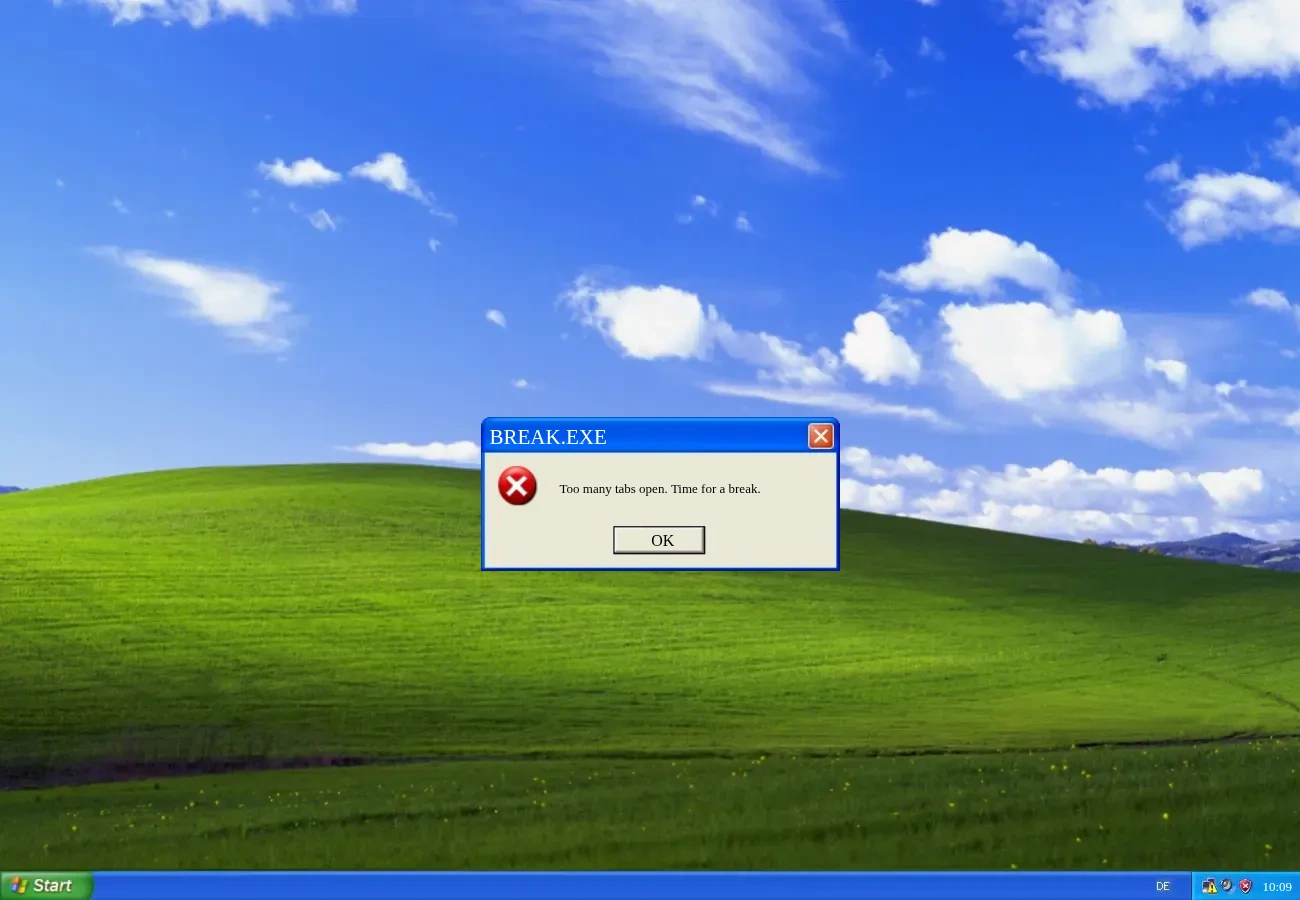
Turn a familiar blue error window into a message of your own. This tutorial uses MetaMapper's Windows XP-style error preset to make a desktop graphic with the title BREAK.EXE and the message Too many tabs open. Time for a break. The finished picture can become a meme, a presentation image, or a playful announcement.
Open the Windows XP error window in the editor.
Start with the matching XP window template
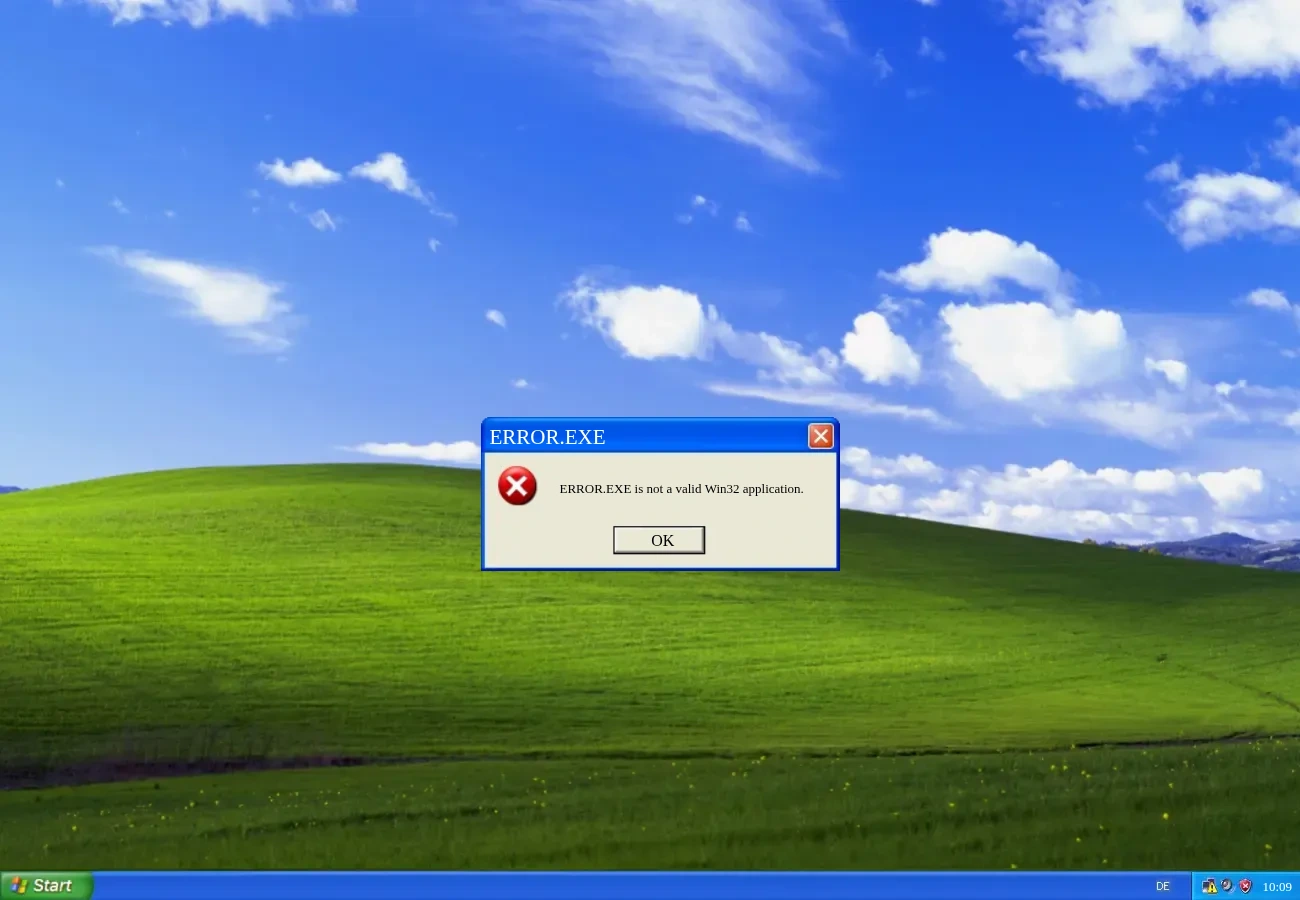
The winxp-error preset is a 1300 × 900 canvas. It combines a desktop background with window artwork and separate text objects for the title, message, button label, and taskbar clock. You can inspect the preset details before opening the editor.
For this example, change two text objects and leave the rest of the composition in place:
| Text area | Starting text | Replace it with |
|---|---|---|
| Window title | ERROR.EXE | BREAK.EXE |
| Message | ERROR.EXE is not a valid Win32 application. | Too many tabs open. Time for a break. |
| Button label | OK | Keep OK |
1. Open the preset and select its title
Use the editor link above and wait for the desktop and error window to finish loading. You can start directly from the preset without entering a website address.
Double-click ERROR.EXE in the blue title bar to enter text editing. Select the existing text and type BREAK.EXE. Click outside the text to finish editing.
2. Write your own error message
Double-click ERROR.EXE is not a valid Win32 application. inside the window. Select the sample message and replace it with Too many tabs open. Time for a break. Click outside it when you are done.
Keep the message brief. The text box and the illustrated window are separate objects: a longer message can wrap beyond the space available without making the window taller. Shorten the wording or adjust the selected text object's size, then check that the message stays clear of the icon and button.
You can also double-click OK to change the button label. A short label such as Retry is easier to fit inside the existing button artwork. Keep OK to reproduce the example shown here.
3. Download the finished image
Open the Share tab and choose Download. PNG is the default format. At the original size, this preset exports a 1300 × 900 PNG.
Open Download options if you want a different output size or one of the other image formats, JPEG or WebP. Check the exported file at the size you intend to share it: small dialog text can become hard to read when the whole desktop is reduced to a thumbnail.
This example was edited in preset 139 and downloaded through Share → Download. Save the image before closing the editor. If you want another version, change the text in the editor and download it again.
Short messages to try in the window
Use a small everyday frustration as the setup, then let the error-window design supply the joke:
- COFFEE.EXE — Coffee not found. Please refill and retry.
- WEEKEND.EXE — Still loading. Please wait until Friday.
- FOCUS.EXE — Too many tabs. Choose one thing to finish.
Preview each message before exporting. A sentence that fits the original layout is more useful than a long paragraph squeezed into a tiny dialog.
Questions about custom XP error images
Is this a working Windows XP popup?
The result is an image of an XP-style window. Its buttons and close icon are pictured artwork; they do not open dialogs or run programs on another computer. You can use the graphic in a post or mockup without installing Windows XP.
Can I edit the text in the downloaded PNG later?
The PNG contains the finished pixels. It does not retain the separate title, message, and button text objects. Make further text changes in MetaMapper and export another image.
Does this create an installable Windows XP theme?
MetaMapper creates a graphic. It does not install desktop themes, replace your operating-system interface, or change system sounds.
Try another retro window style
For a gray dialog on a teal desktop, follow the Windows 95 warning-image tutorial. To compare a warning window with a command prompt or media-player desktop, browse the Windows 95 preset guide.
Ready to write your own message? Start with the XP error preset.