
The MetaMapper Blog
How to Make a Windows 95-Style Dialog Image
Customize a Windows 95-style warning dialog with your own title and message, then download a PNG. Follow this example using the actual editable preset.
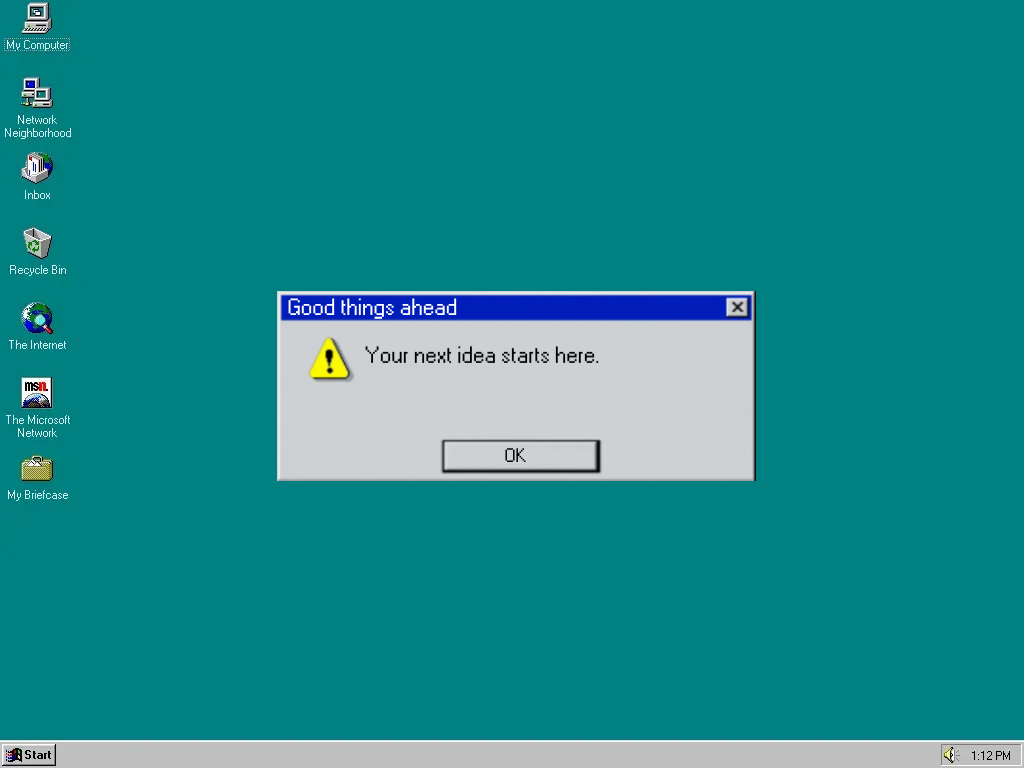
Make a retro warning graphic with your own message. This tutorial uses MetaMapper's win95 warning preset, a 1024 × 768 image with a desktop background, dialog border, and editable text. The result is a picture for a post, presentation, or mood board.
Open the warning dialog in the editor.
The starting preset
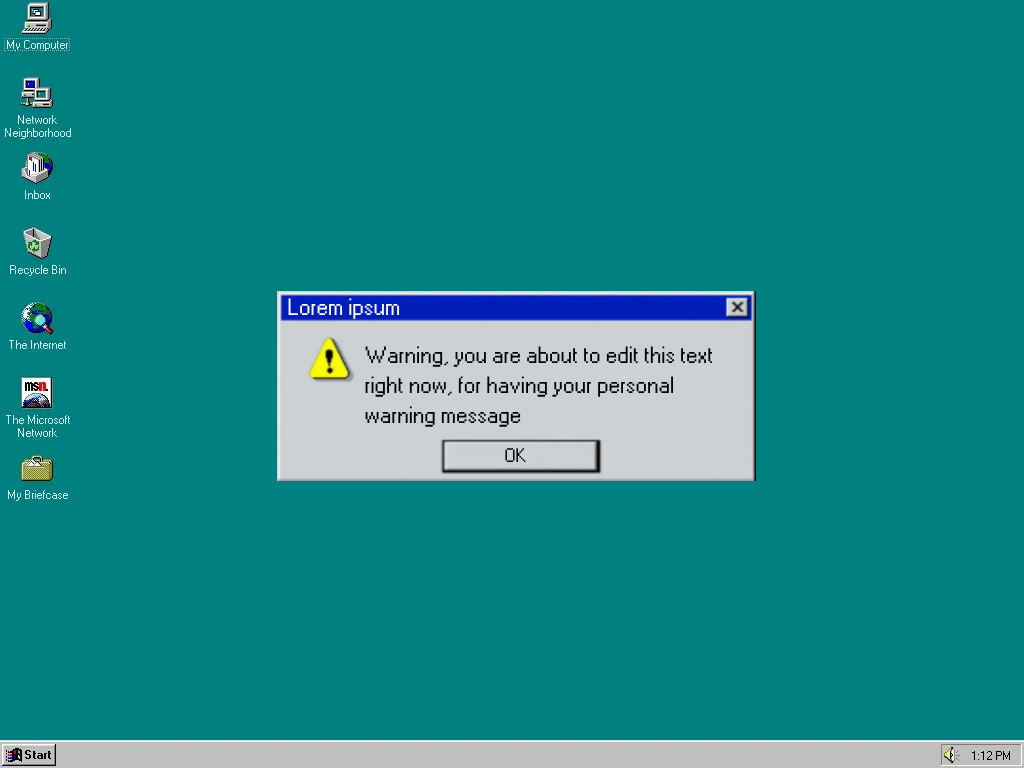
The dialog's title, warning message, and button label are separate text objects. The border and warning icon are part of an image, so selecting them selects that artwork rather than an individual interface control.
1. Open the matching preset
Use the editor link above, or view the warning preset details first. You can begin without entering a website address. Wait for the desktop and dialog to appear before editing.
2. Replace the title and message
Double-click the title Lorem ipsum, select its text, and type Good things ahead. Then double-click the warning message and replace it with Your next idea starts here. Keep OK as the button label for this example.
Click outside the text when you finish. If the message runs beyond the dialog, shorten it or use the selected text object's size controls. Changing the text object does not automatically resize the illustrated dialog behind it.
3. Download the result
Open the Share tab and choose Download. PNG is the default image format. Download options also lets you choose JPEG or WebP and an output size; choose the original size for a 1024 × 768 PNG.
This example was edited and downloaded from preset 63. Open the downloaded image to check the message and its edges before using it. Keep that file before closing the editor; reloading is not a way to save every canvas edit.
A common mistake: editing the downloaded picture
Make text changes in MetaMapper before downloading. A PNG contains the finished pixels, so opening that file does not restore the separate text objects. Return to the preset to create another version.
Is this a Windows 95 font generator?
MetaMapper edits text inside an image. It does not create or download a typeface file. Use the font controls available for the selected text object; a separate font download is a different task.
Will this change my desktop or show a real popup?
The preset creates a Windows 95-style graphic. It does not install an operating-system theme or run a system dialog. The illustrated button is part of the design.
Want a different composition? Compare Windows 95-style presets or make a vaporwave image.
For a blue title bar and an XP-style desktop, make a custom Windows XP error message image.